
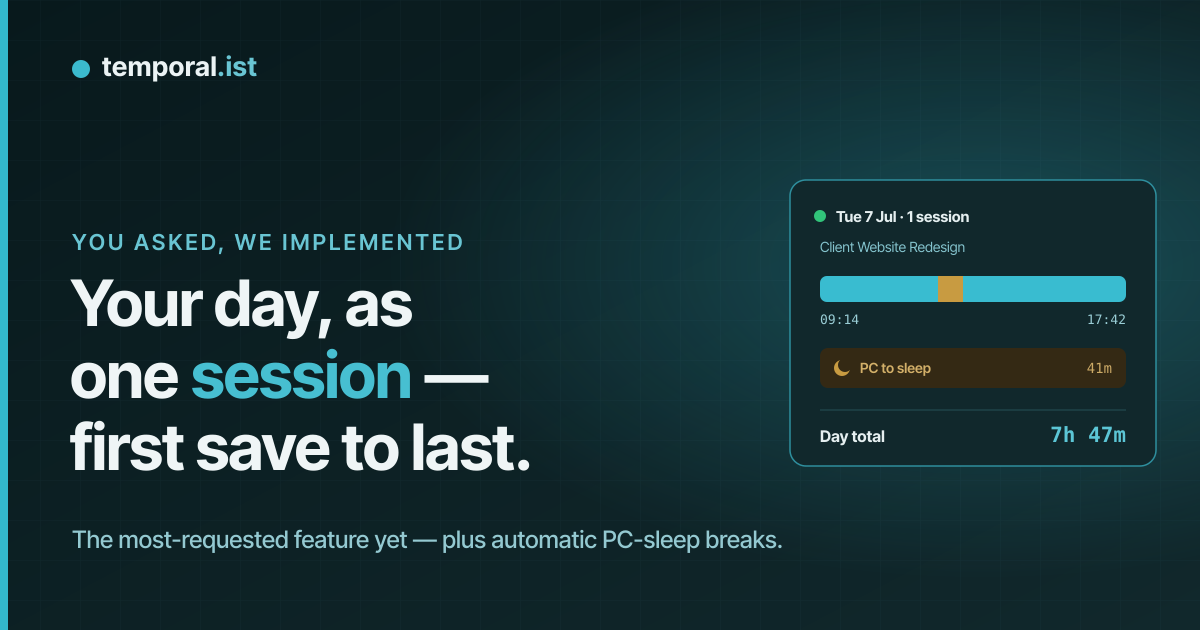
You asked. Quite a few of you, actually.
Since we opened the ticket system, one request has come back more than any
other, in different words but always the same shape: "I work on one project
all day. Why does my day show up as nine sessions?"
Fair question. The idle timeout — end a session after 15 minutes without a
save — is precise, and for a lot of people it's exactly right. But if you
think of Tuesday as "a day on the client's project" rather than nine visits
to it, the session list has been describing your day in someone else's
vocabulary.
So: you asked, we implemented. Three things, actually — because once your
day is one long session, your laptop's lunch nap and your detours to other
projects suddenly matter.
One session per day, first save to last
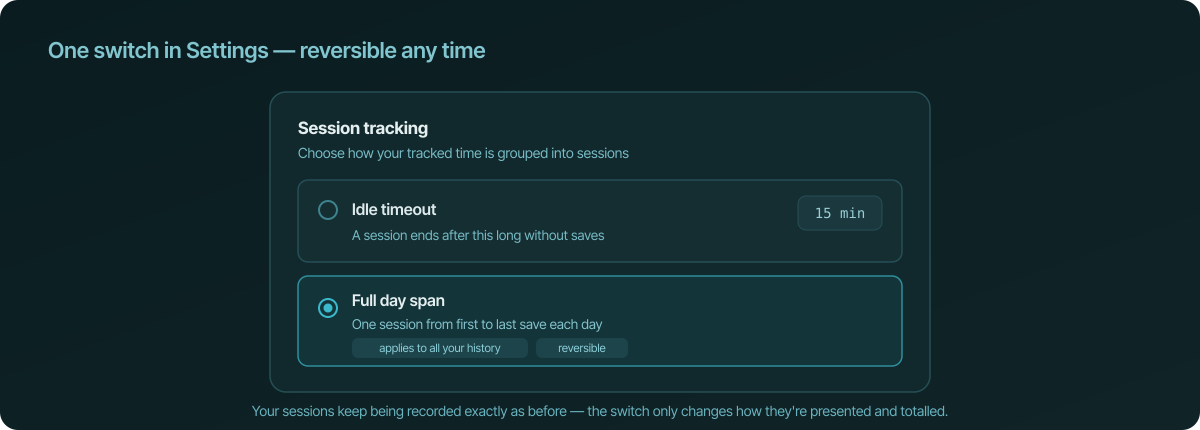
There's a new choice in Settings called Session tracking, with two
options. Idle timeout is the behavior you already know, and it stays the
default: stop saving for a while (15 minutes unless you change it) and the
session closes, giving you precise, gap-free blocks.
The new option is Full day span. Turn it on and every project shows one
session per day, running from the first save of the day to the last. The
short coffee break, the meeting that interrupted you, the ten minutes reading
documentation between saves — in day-span mode they're all part of the day's
session, the way most people talk about their day anyway.
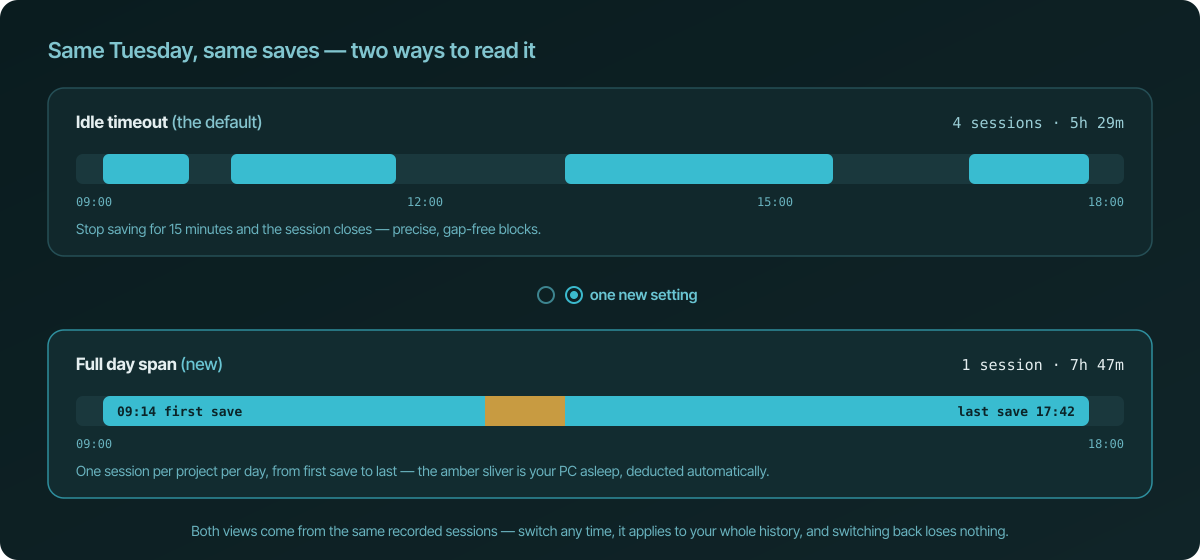
A few things that make the switch painless:
- It applies to your whole history, instantly. This isn't a setting that
only affects new tracking — the moment you flip it, every day you've ever
tracked is presented as day spans, all the way back. - It's completely reversible. Your individual sessions keep being
recorded underneath, exactly as before. Flip back to idle timeout and
everything is precisely where you left it. Nothing is merged away,
nothing is lost. - The day still opens up. Click a day-span session on the sessions page
and it expands to show the real sessions underneath, each one still
individually editable. The calendar does the same with a day summary. - Every save counts, wherever it came from. Desktop saves, tracked
browser tabs, and manually started sessions on the same project all fold
into the same day span.
And your invoices follow along
Day-span mode wouldn't be much use if invoicing still made you tick thirty
checkboxes. With the switch on, the unbilled-work list shows whole days:
pick the days, and the invoice bills each one from first save to last. Days
you've already billed stay billed, invoices you've already sent are never
recalculated, and if you switch modes later, past invoices don't move a cent.
New: your PC's naps are on the record
Here's the catch we had to solve before shipping this: if Tuesday runs from
your 09:14 first save to your 17:42 last save, what about the hour your
laptop lid was closed over lunch?
That's the second thing we built. The desktop app now records the time your
computer spends asleep as a break — it catches the moment the machine
suspends and the moment it wakes, even mid-session. In day-span view the nap
shows up as its own "PC to sleep" row inside the day, and the time is
deducted from the day's total automatically.
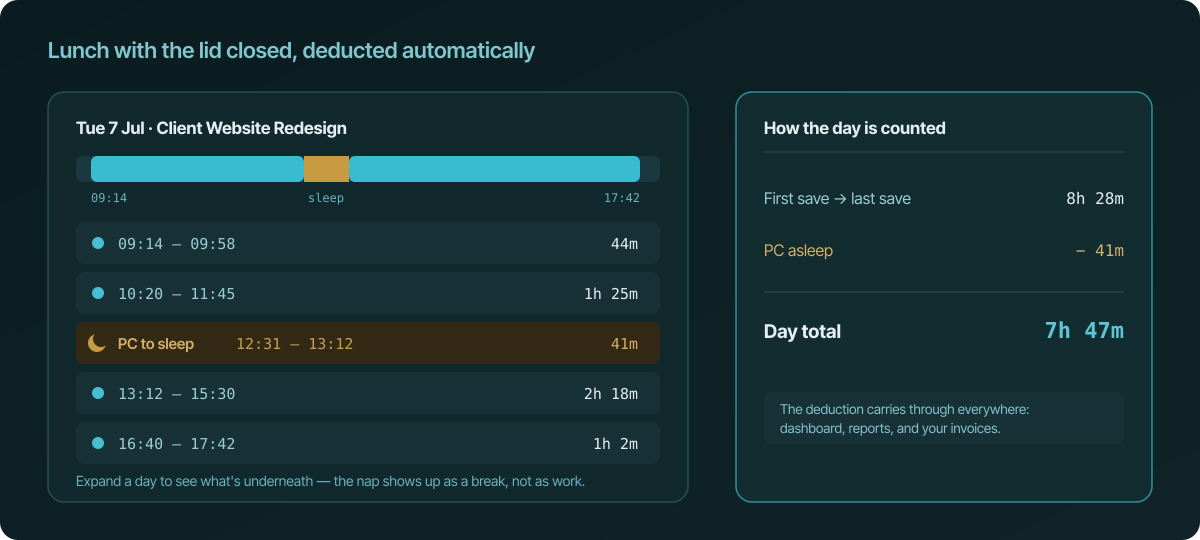
The details are taken care of:
- It works offline. The nap is recorded on your machine and synced when
you're back — closing the lid on a train doesn't lose anything. - It's deducted everywhere. Day totals, the dashboard, reports, and the
hours on new invoices all subtract sleep time. A client is never billed
for a closed lid. - Momentary blips don't count. A dip of under a minute and a half is
ignored, so a flaky wake-up doesn't litter your day with phantom breaks. - It's honest in both modes. Even if you stay on idle timeout, sleep
that overlaps a session is deducted from it.
Detoured to another project? Also carved out.
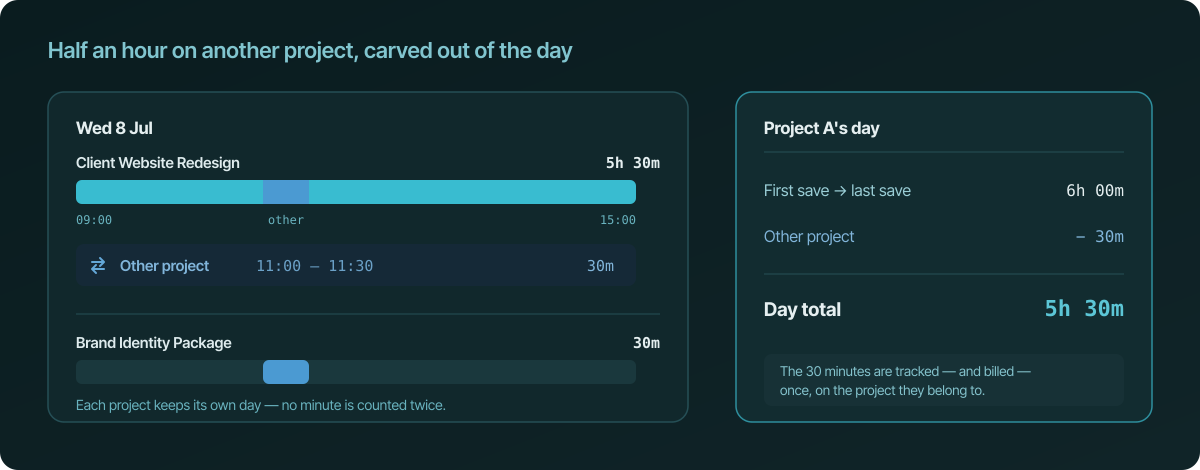
The third piece answers the next question you'd ask: what if you jump to a
different project for half an hour in the middle of the day? Say you save
on project A at 9:00, spend 11:00 to 11:30 on project B, then close out
project A with a save at 15:00.
Project A's day still runs 9:00 to 15:00 — but the half hour that belongs to
B shows up inside it as its own "Other project" block, and it's deducted
from A's total automatically: six hours becomes five and a half. Project B
keeps its own 30-minute session, untouched. Every minute of that day is
counted exactly once, on the project where you actually worked — which is
exactly what you want when the two projects bill to different clients.
Which mode should you pick?
If you bill by precise effort — every tracked minute is a worked minute —
stay on idle timeout. That precision is the product's founding idea and
it isn't going anywhere.
If your agreement with clients is day-shaped — "I was on your project
Tuesday" — or you simply want your session list to read like your calendar
does, try full day span. Since it's reversible and applies to history
both ways, the honest answer is: flip it, look at last month, and keep
whichever version of your time you recognize.
Keep the requests coming
This feature exists because people took a minute to write it down. That's
not a platitude — we can trace this exact switch back to specific tickets,
and it's the most satisfying kind of work we do.
So if there's something Temporal.ist almost does, or does in a way that
doesn't fit how you work: open a ticket. You
don't need an account to write one, every ticket gets read, and as of today
there's one more feature we can point to and say — you asked, we implemented.