
The last manual step was you
Automatic time tracking already solves most of the problem: the desktop app
turns file changes into sessions, the browser extension does the same for
URLs, and your day assembles itself — no timers, no screenshots. But there
was always a leftover pile that automation can't see. The call that happened
away from the keyboard. The timer you meant to stop at five. The Friday
question — "how much of this week was client work?" — that meant opening
the dashboard and clicking around.
You already talk to an AI assistant all day. As of today, that assistant can
handle the leftover pile: Temporalist is now a native MCP server, and
every MCP client — Claude, ChatGPT, Gemini, GitHub Copilot, OpenAI Codex, Kimi Code, OpenCode and
friends — can operate your time tracking directly.
What you can say
No commands to memorize. These are real phrases, straight from our own
usage:
- "Create a project called Dunder Mifflin and start a timer for this
session." - "Change current task to building the frontend."
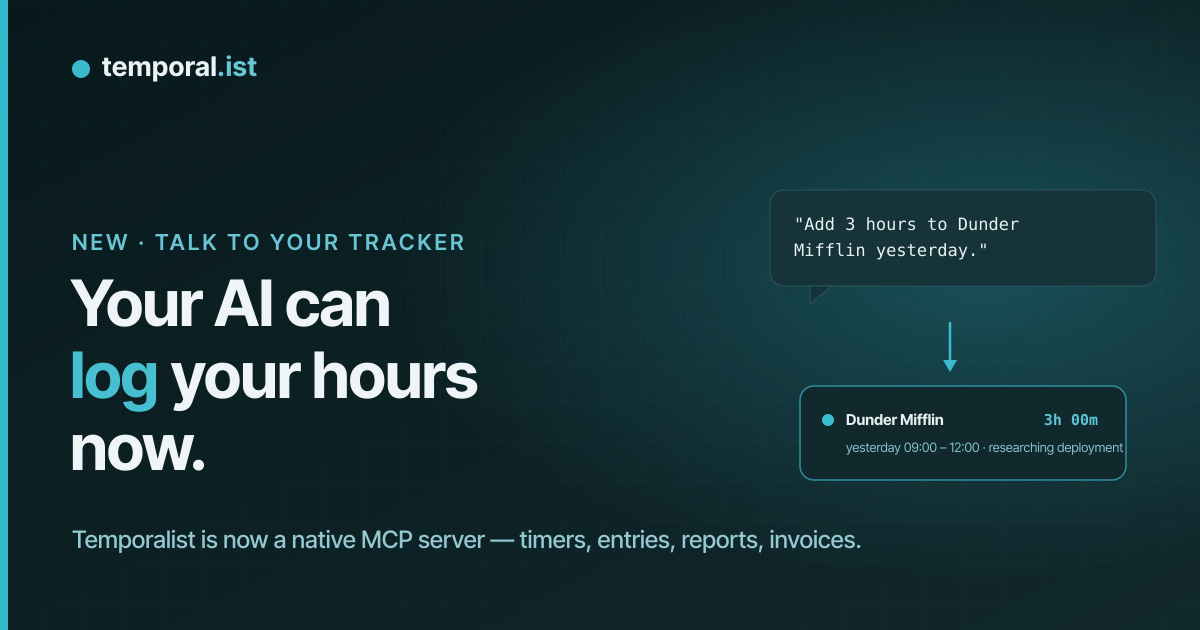
- "Add 3 hours to Dunder Mifflin yesterday — researching deployment."
- "How much time did I spend on Dunder Mifflin this week?"
- "Stop the timer — actually, I stopped at 17:00."
- "Move this morning's entry to the right project."
- "Invoice all Dunder Mifflin work for July, then send it."
Your assistant picks the right tool, Temporalist does the bookkeeping, and
the result lands in the same ledger as your automatically tracked sessions:
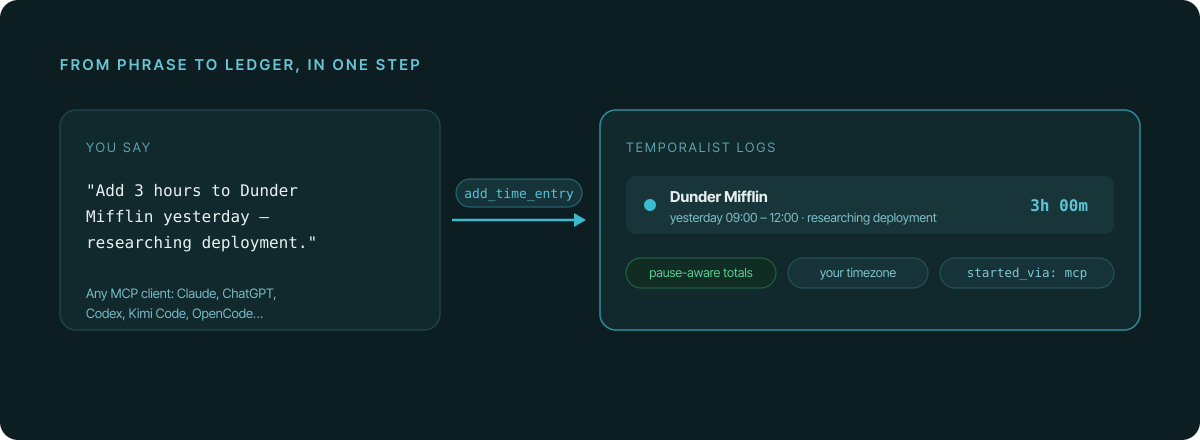
Project names are fuzzy-matched, so "dunder muffin" still finds Dunder
Mifflin. When a name is genuinely ambiguous, the assistant gets your project
list back and asks instead of guessing.
One URL, every assistant
MCP (the Model Context Protocol) is the open standard AI assistants use to
talk to outside tools. Temporalist implements it as a remote server — there
is nothing to download, nothing to self-host, and no per-client setup drift:
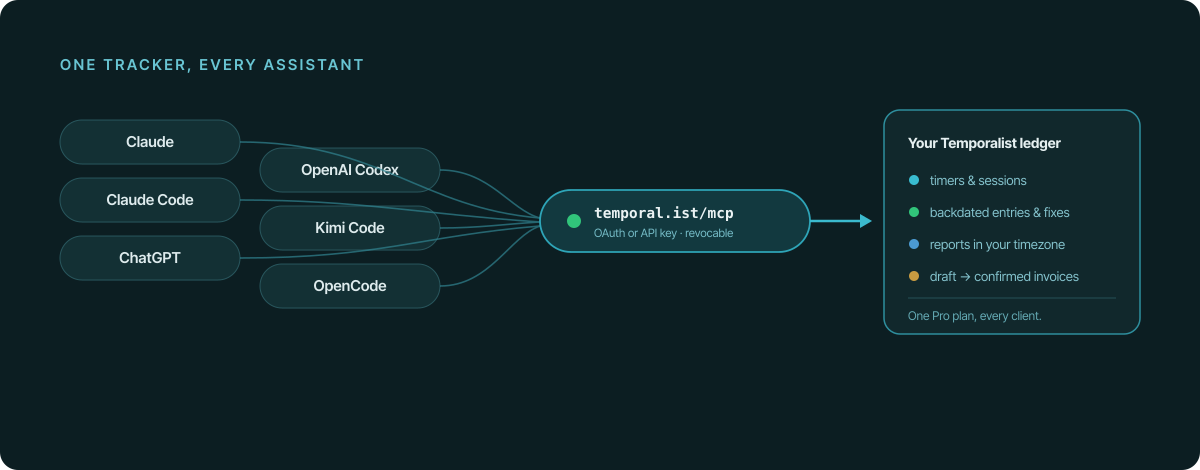
You authenticate with the same OAuth login as the dashboard, scopes are
read/write, and you can disconnect any client without touching the others.
Prefer keys? Create one under Settings → API keys — a read-only key
makes a reporting-only assistant that can answer questions but never change
your hours.
Set it up
The server lives at https://temporal.ist/mcp. Pick your client:
Claude Code — one command, then authenticate from /mcp:
claude mcp add --transport http --scope user temporalist https://temporal.ist/mcp
Claude (web, desktop & mobile) — Settings → Connectors → Add custom
connector, paste https://temporal.ist/mcp, press Connect. The connector
follows your account to desktop and mobile.
OpenAI Codex — via the CLI, or directly in ~/.codex/config.toml:
codex mcp add temporalist --url https://temporal.ist/mcp
[mcp_servers.temporalist]
url = "https://temporal.ist/mcp"
ChatGPT — Settings → Apps & Connectors, enable Developer mode, then
Create a connector with the server URL.
Gemini CLI:
gemini mcp add --transport http temporalist https://temporal.ist/mcp
GitHub Copilot (VS Code 1.101+) — run MCP: Open User Configuration
from the command palette (or use .vscode/mcp.json per project):
{
  "servers": {
    "temporalist": {
      "type": "http",
      "url": "https://temporal.ist/mcp"
    }
  }
}
Kimi Code:
kimi mcp add --transport http temporalist https://temporal.ist/mcp
OpenCode — in opencode.json:
{
  "mcp": {
    "temporalist": {
      "type": "remote",
      "url": "https://temporal.ist/mcp",
      "enabled": true
    }
  }
}
The MCP connection is part of Temporalist Pro. One subscription covers every
assistant you connect.
Nineteen tools, with guardrails
This is not a read-only demo. The full workflow is exposed: start_timer,
stop_timer, pause_timer, resume_timer, get_active_timer,
add_time_entry, list_time_entries, edit_time_entry,
delete_time_entry, set_current_task, list_projects, create_project,
get_time_report, create_invoice, list_invoices, send_invoice — and,
behind an explicit opt-in, list_clients, create_client and
update_client for managing the customers you bill.
Handing an AI write access to your billable hours only works if the sharp
edges are guarded, so they are:
- Destructive actions are two-step. Deleting an entry or emailing an
invoice first returns a preview of exactly what would happen. Nothing
irreversible runs until you confirm. - Invoices start as drafts. "Invoice July" builds line items from your
unbilled sessions — grouped per project, pause-aware hours times the
project's rate — and hands you a link to review before anyone sends
anything. - Everything is labeled. Sessions an assistant creates are marked as
such, so the dashboard always shows which hours came from AI time logging
and which came from automatic tracking. - Invoiced hours are locked. Entries already on an invoice can't be
edited or deleted through the AI, full stop. - Customer data is opt-in. Client records and invoicing are gated
behind a separate setting that is off by default — more on that below.
Still private: sensitive data is a separate switch
Time tracking never needs your customers' contact details, so the tools that
touch them — client records and invoicing — sit behind their own setting:
Settings → AI Assistant → "Let an AI assistant handle sensitive data
(customer data)", off by default. Until you enable it, an assistant that
asks for your client list gets a polite refusal and a link to the setting.
Timers, time logging and reports keep working either way.
It's worth being honest about what this switch does and doesn't do. The
assistant you'd connect is usually the same one that already drafts your
emails and summarizes your calls — in daily use it has most likely seen
these names, addresses and rates already. The setting doesn't pretend your
own assistant has never met your customers. What it does is make the access
explicit: you decide whether your time tracker is allowed to hand over
customer data, the decision is scoped to your account, and you can revoke
it at any moment without breaking anything else.
Honest numbers, not vibes
An assistant is only as useful as the data underneath it. When you ask
"where did my week go?", the answer comes from the same pause-aware
arithmetic the dashboard uses: breaks and PC-sleep are excluded, days split
at midnight in your timezone, and a running timer is included and
labeled. Ask at 9am in Los Angeles and "yesterday" means your yesterday —
not a server's.
That's the quiet difference between time tracking software that added a
chatbot and time tracking that is genuinely AI-ready: the tools operate the
real ledger, with the real rules, and the numbers your assistant reports are
the numbers your invoice will carry.
What's next
This came out of our own daily use — logging hours from the middle of a
Claude Code session turned out to be something we now do without thinking.
If your assistant of choice doesn't connect cleanly, or there's a phrase you
keep trying that doesn't work yet, tell us at
temporal.ist/contact. The last few features
we shipped came straight from tickets; this one can grow the same way.