
Most of your time tracks itself. Sometimes you want to start it on purpose.
The desktop client watches your project folders and the browser extension
watches your tabs, so most sessions start themselves — you save a file or open
a tracked URL and a session is already running. But sometimes you want to
start one on purpose: work that isn't in a watched folder yet, a task you want
timed cleanly from this exact moment, or you're just away from the machine
that's normally doing the watching.
That's what the Quickstart bar is for, and it's also where the task
field enters the picture — the one field that turns a block of tracked time
into something a client can actually read on an invoice.
What a "task" actually is
Before the how-to: one concept ties this whole post together, and it's easy to
miss because the UI calls it three different things depending on where you're
looking. On the calendar it's labeled Task. On the plain sessions list
it's Description (optional). On a project page it's Current task. All
three read and write the same underlying field on the session.
Here's why it's worth getting right: a session's task text is exactly what
shows up as the invoice line-item description. When you generate an invoice,
sessions on the same project get grouped by their task text — every session
with the exact same wording sums onto one line item; anything with different
wording becomes its own line.
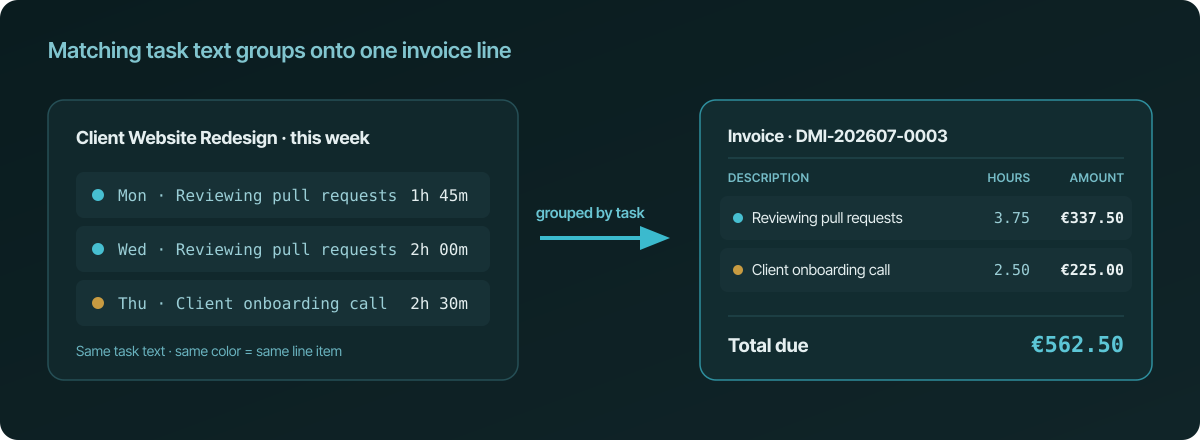
So the task field isn't just a note to yourself — it's how you decide what
your client sees a line item for. Keep the wording identical across sessions
you want billed as one lump ("Reviewing pull requests"), and change the
wording when you want a new line to start.
Starting a session by hand
The Quickstart bar sits collapsed at the top of every page in the app.
Click it, and it expands into a list of your active projects; click a
project, and a session starts immediately — no task prompt, no form, nothing
else to fill in first.
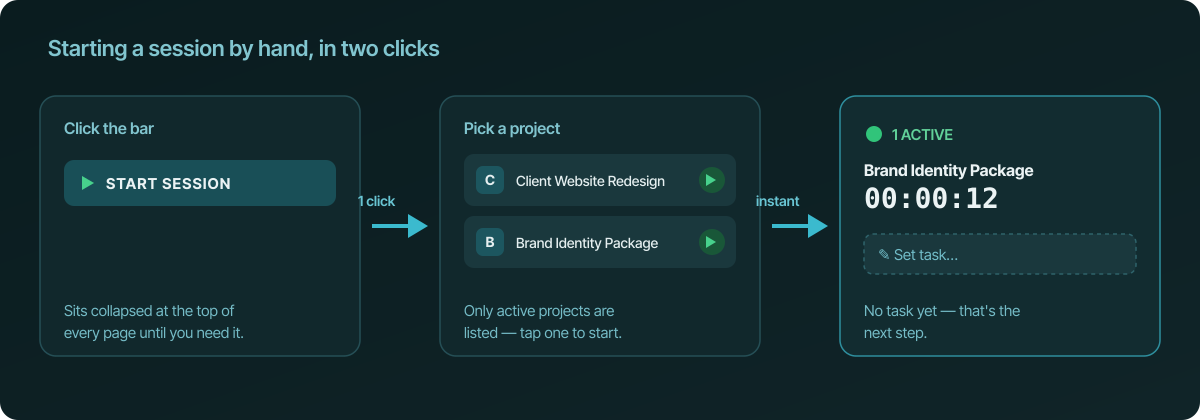
If the project has a current task set (more on that below), the new
session picks that up automatically as its task. If it doesn't, the session
starts with no task at all — which is exactly the state shown in that third
panel, and exactly what the next section is for.
Setting the task the moment a session starts
Once a session is running, a floating Active bar appears with a live
timer. If there's no task yet, it shows a "Set task…" hint right next to the
project name — click it, type a short description of what you're doing, and
save. That text is applied going forward to this project's sessions until you
change it again, so you only have to type it once per chunk of work.
Editing a task on the calendar
Click any session block on the calendar and its edit modal opens with a
Task textarea. Change the text, and a new choice appears: Apply task
to — either Just this session, or This session and all later
sessions. Pick the second one and a checkbox shows up too: Also overwrite
manually edited tasks on later sessions.
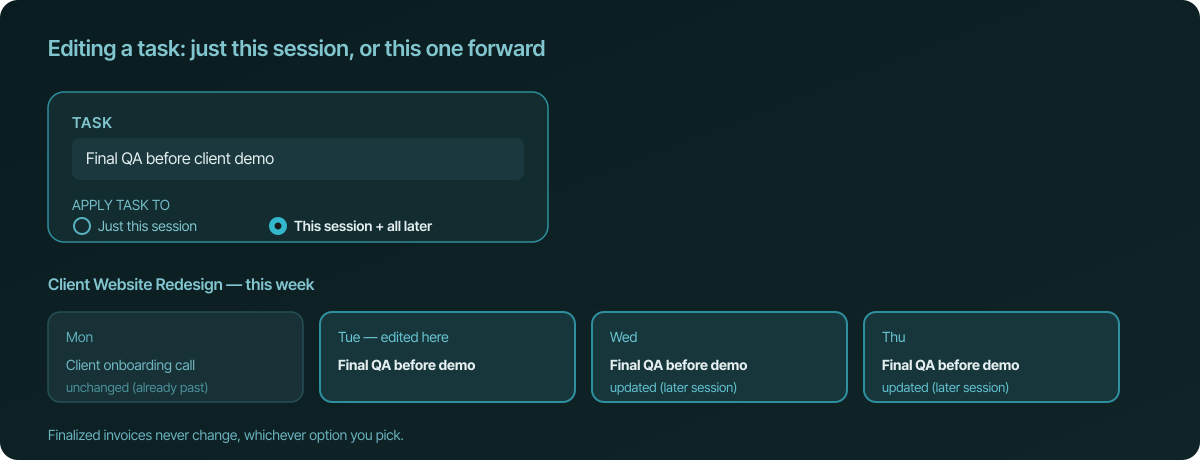
That second option is the closest thing to editing several sessions at once:
it walks forward from the session you're editing and updates every later
session of that project whose task still matches the old text (or every
later session, if you also check the overwrite box) — the project's current
task template gets updated too. Two things it never touches: sessions before
the one you're editing, and any session that's already on a finalized
invoice.
Editing a task from the sessions list
The /sessions list is the plain, no-frills option. Click a row to open its
editor, and you'll find the same field under the label Description
(optional) — a single textarea, no scope choice. It edits exactly the one
session you clicked, which is usually all you want when you're just fixing a
typo or filling in something you forgot.
Editing from the project page
A project's page has its own Current task field near the top — this is
the template that gets stamped onto brand-new sessions the moment they start,
whether from Quickstart, the file watcher, or a browser tab. Change it any
time and it only affects sessions created from then on; it doesn't reach back
and rewrite anything already tracked.
For sessions already on the page, there's a pencil Edit task icon next to
each one, which opens the same "just this session" vs. "this session and all
later sessions" choice as the calendar.
What "for multiple sessions" really means
Worth being precise about, since it's easy to expect a checkbox-per-row bulk
editor: there isn't one. Nowhere in the app can you select five arbitrary
sessions and retag them together. The only mechanism for touching more than
one session at a time is the forward-looking cascade described above — "this
session and all later sessions" — and it only ever reaches forward from
whichever session you're currently editing, never backward, and never past a
finalized invoice.
In practice that covers the common case well: you're mid-project, the task
changes, and you want everything from here on tagged with the new one. For
anything else — retagging something from three weeks ago, say — you'd edit
each of those sessions individually from the calendar or the sessions list.
The takeaway
Quickstart gets a session running in two clicks with no task required up
front. The task field — however the current screen labels it — is what
turns that tracked time into a readable invoice line, and matching text is
what groups sessions onto the same line. You can set or fix it the moment a
session starts, from the calendar, from the plain sessions list, or from the
project page, and when you need it to apply beyond just one session, the
"this session and all later sessions" choice is the tool for that — not a
bulk selector, but a deliberate, forward-only update that leaves history and
finalized invoices alone.