
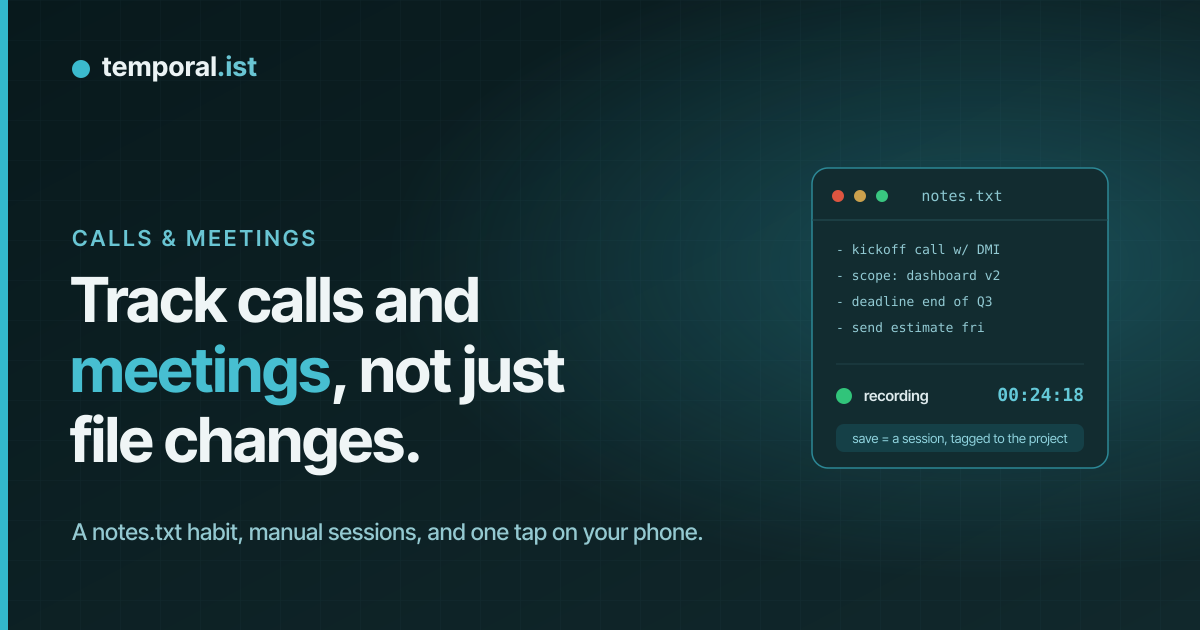
The work that leaves no trace
Temporal.ist is built to track itself. The desktop client watches the files in
your project folders, the browser extension watches the URLs you visit, and
between them most of a working day records itself with no timer to start and no
button to press.
Then you take a call. Or you sit in a meeting, or stand at a whiteboard, or
think a problem through on a walk. Real, billable work — and not a single file
changes, not a single tab opens. Automatic tracking has nothing to grab onto.
That gap is easy to close once you know the moves. Here are four, from the one
you'll reach for most to the one that catches everything else.
1. The notes.txt habit
This is the trick worth building a reflex around, because it solves two
problems at once — tracking the call and remembering what was said.
Keep a file called notes.txt in the project's folder. When a call or
meeting starts, open it and save it immediately. Jot your notes during the
call and save as you go. When the call ends, save one last time. That's
the whole habit.
Here's why it works. The desktop client is watching that folder, and out of the
box it watches every file in it (the default include pattern is *, and a
.txt file isn't on the exclude list). So the moment you save notes.txt, the
client sees a file change, maps it to the project that owns the folder, and
starts a tracked session. Every save after that is logged as activity — a
heartbeat that keeps the session awake. When you stop saving, the session sits
idle and closes itself automatically after the idle timeout (15 minutes by
default).
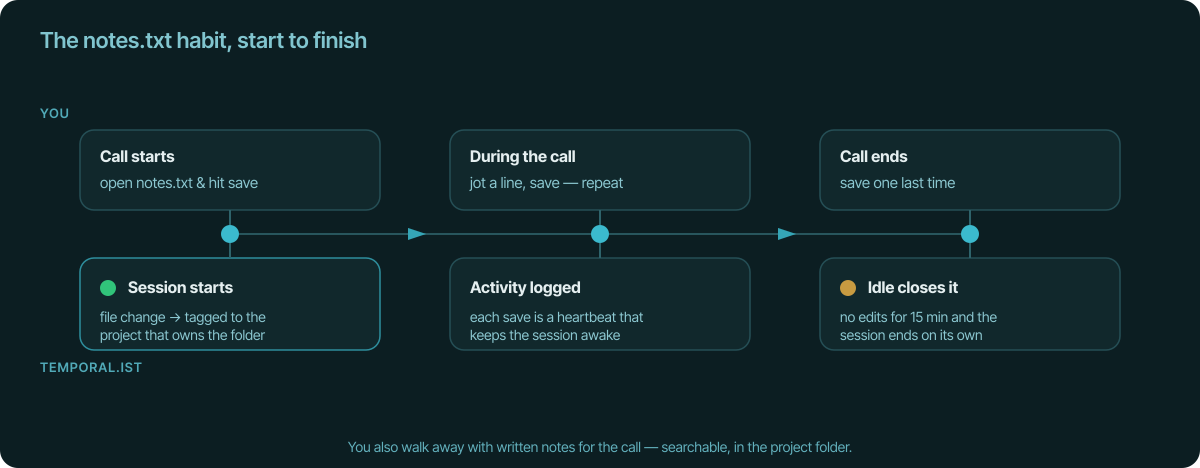
So three saves — start, during, end — give you a session that begins when the
call begins and ends a quarter-hour after it's over. Trim that tail later if you
want exact minutes; the session is editable like any other.
The bonus is the part that makes the habit stick: you walk away with written
notes for the call, sitting in the project folder, searchable, next to the
code or documents they're about. The time tracking is almost a side effect of
taking good notes — which is the easiest kind of habit to keep.
The same routine works for meetings: open notes.txt, save when it starts,
capture decisions and action items as they happen, save at the end. One file,
one habit, every kind of off-keyboard work covered.
2. Add the session by hand
Some calls you take away from your machine, or you simply forget to open
notes.txt. No problem — you can write the session in directly.
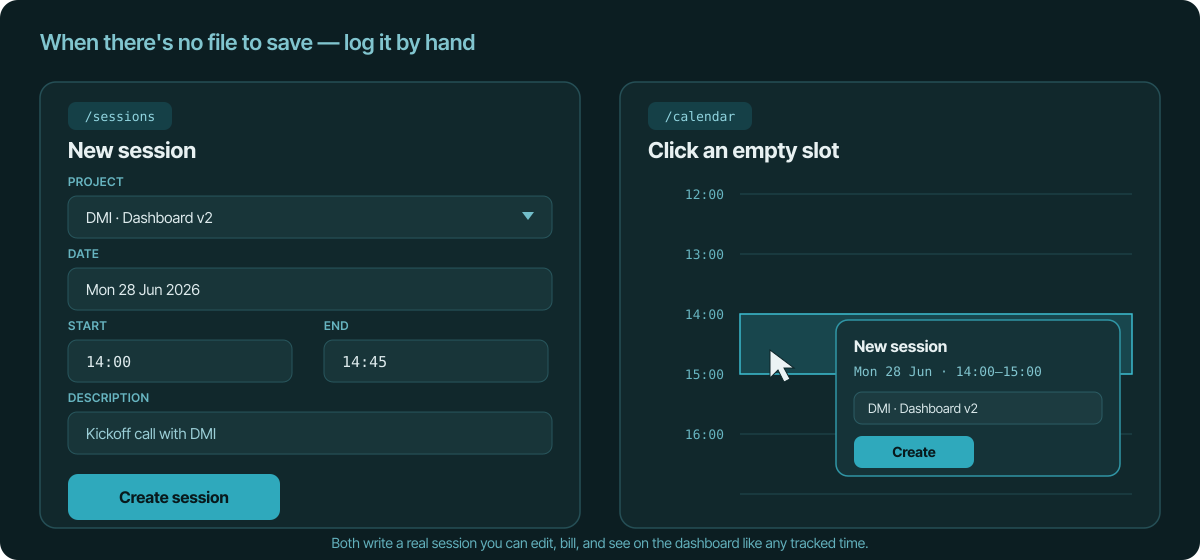
From the /sessions view, hit New session: pick the project, set the
date, set a start and end time, and add a short description so future-you knows
what the block was. From the /calendar view, just click an empty slot on
the day — the new-session form opens pre-filled with that date and hour, so you
can drop a meeting onto the calendar right where you'd expect to see it.
A manually-added session is a real session. It shows on the dashboard, counts
toward project and client totals, and lands on invoices exactly like time that
tracked itself. The only difference is that you typed the start and end instead
of a file edit recording them for you.
3. On your phone: home screen + quickstart
When the call is on your phone and you're nowhere near your desk, reach for the
web app on your phone.
Open temporal.ist in your mobile browser and add it to your home screen
(Chrome's menu on Android offers "Add to Home screen" / "Install app"). It then
launches full-screen from its own icon — no browser chrome, an app-like
experience — because the site ships a web-app manifest for exactly this.
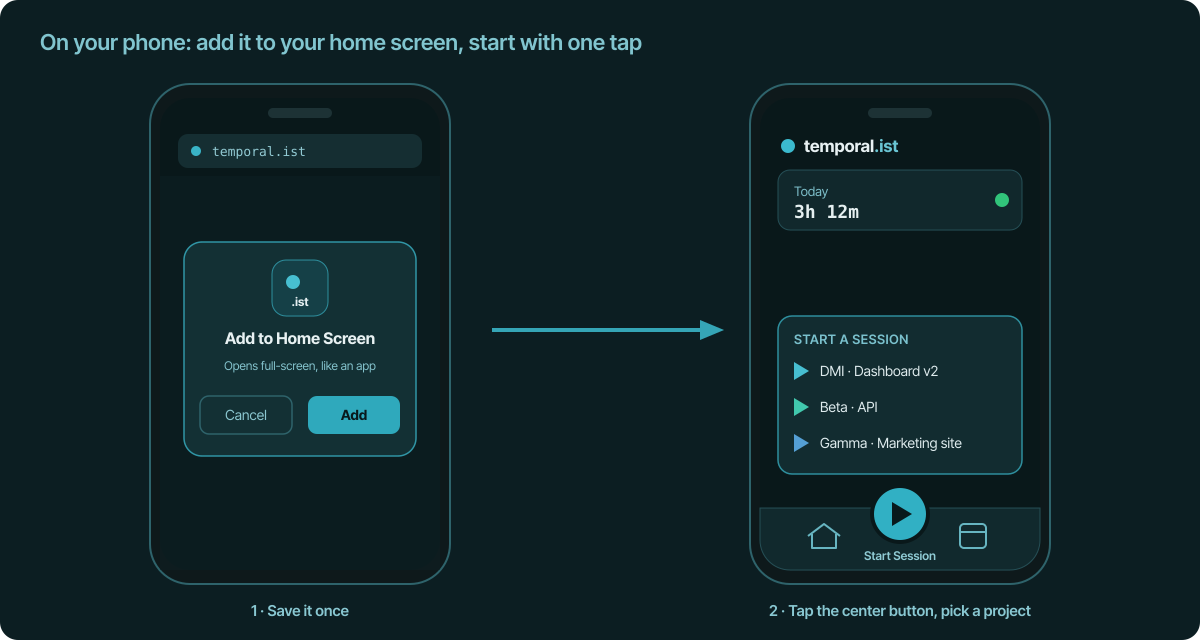
Once it's on your home screen, starting a session is one tap. The quickstart
button sits in the centre of the bottom row; tap it, pick the project, and
you're tracking — before the call even connects. Tap the project again when
you're done to stop. It's the fastest way to catch a call you didn't see
coming, and it keeps the mobile, away-from-keyboard time in the same place as
everything else.
4. Billing it
However a call or meeting got tracked — a notes.txt save, a hand-typed
session, a tap on your phone — it's just tracked time, so it flows onto invoices
with the rest of the project's hours at the project's rate. There's nothing
special to reconcile.
And for the work that never produced a session at all — a flat-fee consult, a
phone call you genuinely forgot, a fixed line you've agreed with the client —
you can add a manual line item directly on a draft invoice. Use Add custom
line item, type the description, hours, and rate, and it sits alongside the
auto-generated rows. The invoice doesn't force everything to come from tracked
sessions; tracked time is the easy default, and the manual line is always there
for the exceptions.
The takeaway
Automatic tracking handles the keyboard work. For everything else, pick the move
that fits: build the notes.txt habit for calls and meetings and you get
tracking and written notes from one reflex; add a session by hand from
/sessions or /calendar when there was no file to save; use the mobile
quickstart for calls on the go; and add a manual line item when you need
to bill something that never tracked at all. None of it is a timer you have to
remember — it's a save, a click, or a tap.