
The two-tool tax
The standard freelance setup is two products bolted together: a time tracker
for the week, and a separate invoicing app for the bill. Between them sits a
ritual — export a CSV, reshape it, paste hours into invoice rows, re-key the
rate, hope you didn't fat-finger a decimal. It's friction every single billing
cycle, and it's where mistakes (and unbilled hours) creep in.
It only exists because the two halves of the job live in different tools. Put
them in one and the export step disappears.
One tool, end to end
When tracking and invoicing are the same product, the path from work to payment
has no seam in the middle:
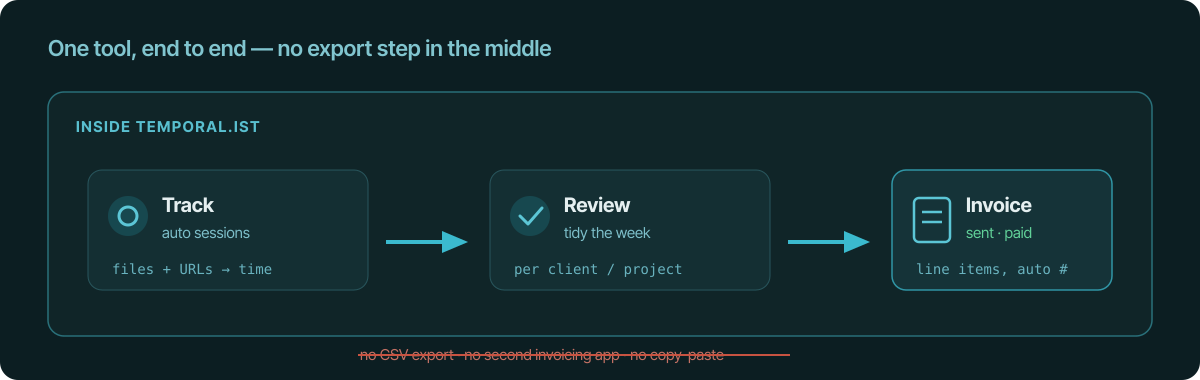
- Track. Sessions are captured automatically from your file edits and
visited URLs, tagged to the right project. - Review. On the dashboard you tidy the week — fix a mis-tagged block,
check per-client and per-project totals. - Invoice. You generate the bill from that same tracked time. No export,
no second app.
How a session becomes a line item
The link that makes this work is simple: each project is tied to a
client and a rate. So when you invoice a client, the tracked sessions
on their projects already know how many hours they were and what they're worth.
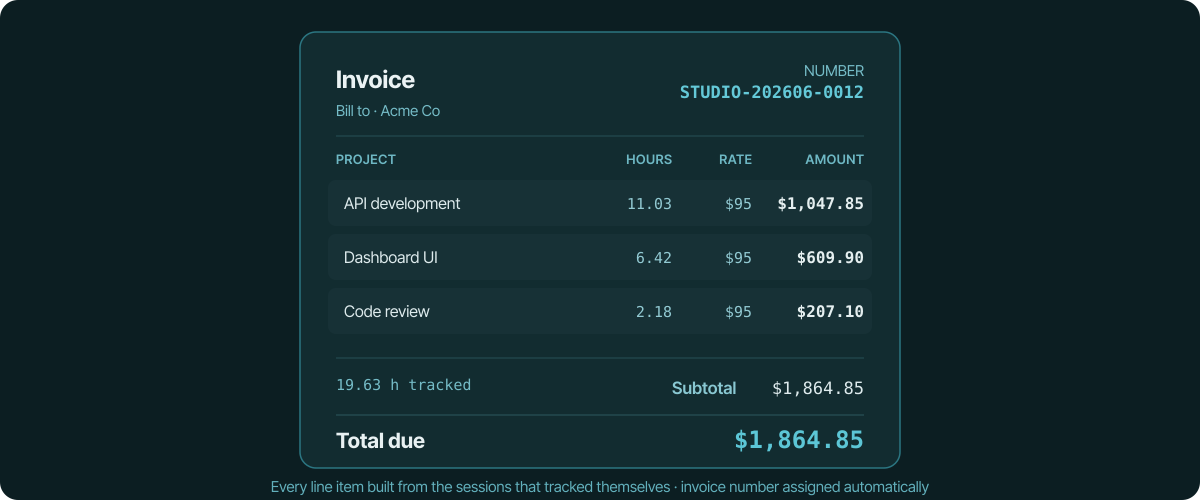
Line items group by project, hours come straight from the captured sessions,
the rate is the project's rate, and the invoice number is assigned
automatically in an ORG-YYYYMM-XXXX format. What you're billing is exactly
what was tracked — not a hand-typed estimate.
Why this matters for accuracy
The two-tool workflow doesn't just cost time; it costs money. Every manual
hand-off is a chance to round down, forget a block, or mistype a rate. When the
invoice is generated from the same sessions you reviewed minutes earlier,
there's nothing to transcribe — the numbers are the numbers.
Moving your history over
If you're consolidating from a tracker-plus-invoicing stack, CSV import brings
your historical time entries in, so past work sits alongside new
automatically-captured sessions and nothing falls through the gap during the
switch.
The takeaway
The CSV export between your time tracker and your invoicing app isn't a feature
— it's a tax you pay every billing cycle. Track and bill in one tool, link
projects to clients and rates, and a reviewed week turns into a numbered
invoice without a single copy-paste.
See also
- track billable hours without a timer — Capture billable hours automatically from file edits and URLs, no stopwatch.
- time tracking for small agencies — Per-project and per-team roll-ups for billing clients without surveillance.
- track coding time in any editor — Track coding time across editors by watching files, no plugin.
- stop filling timesheets — Let tracked sessions write your timesheets automatically, no manual entry.
- what Temporal.ist is — A quick intro to the automatic, privacy-first time tracker.