
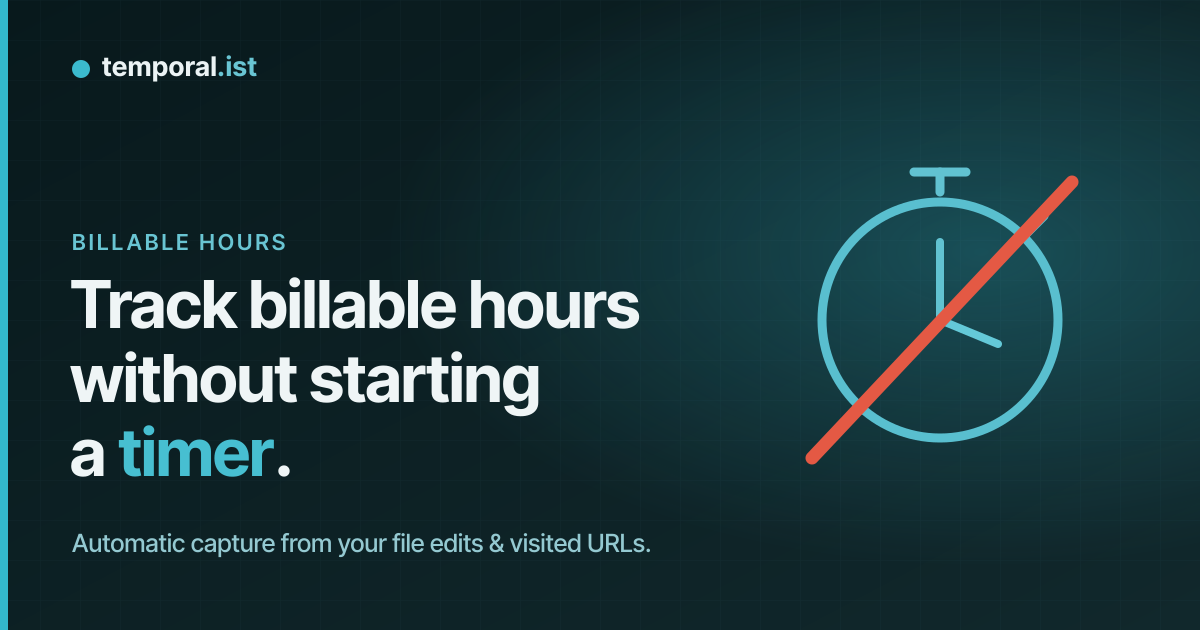
The real reason you keep forgetting the timer
Every freelancer who bills by the hour has lived this: it's Friday afternoon,
the invoice is due, and you're staring at git log, your browser history, and
a half-remembered week trying to figure out how long the Dunder Mifflin work actually
took. You round. You guess. You almost certainly under-bill.
The usual advice is "build the habit." But a manual timer asks you to do
something — start, switch, stop — at exactly the moments your attention is
already gone: a context switch into a different client's repo, a quick jump to
their staging site, a Slack thread that turns into an hour of real work. The
timer loses that fight every time. It's not a discipline problem. It's the
wrong tool for how the work actually happens.
The alternative: capture, don't start
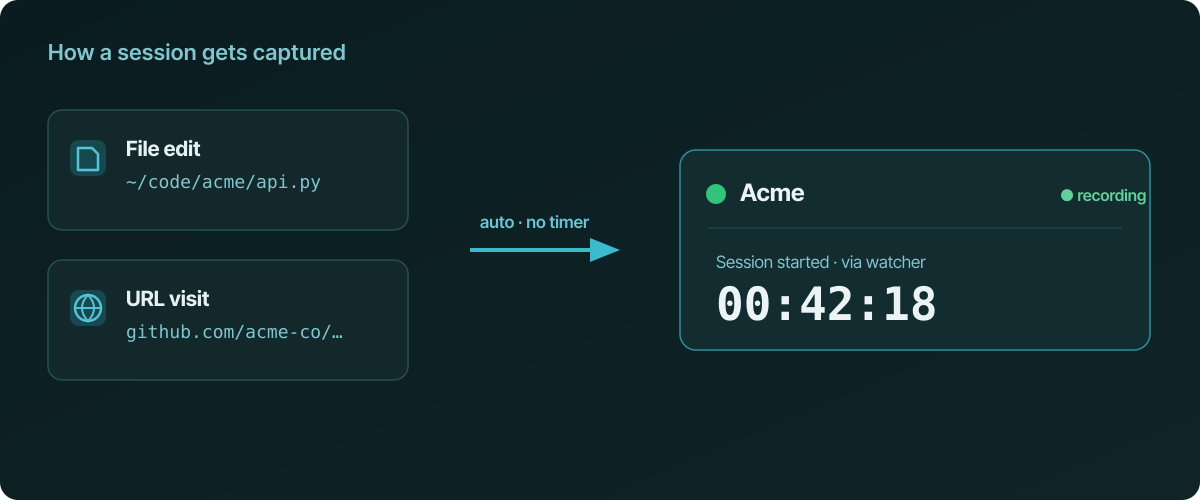
Instead of asking you to mark when work begins, automatic time tracking
watches the work itself and infers the session.
Two signals cover most billable work:
- File edits. A background desktop client (macOS, Windows, Linux) watches
the directories you tell it to — say~/code/clients/dmi/. The moment you
save a file there, a session for that project starts. On a headless box or
VPS, the Linux CLI does the same over SSH. - Visited URLs. Browser extensions (Chrome, Firefox, Edge, Safari) map URL
patterns to projects. Time ongithub.com/dmi-co/*or the client's staging
domain lands on the Dunder Mifflin project automatically.
You set the paths and patterns once. After that, the question "did I start the
timer?" stops existing — there's nothing to start.
What about the breaks?
The objection to automatic tracking is always the same: won't it bill my lunch?
No. When you stop touching in-scope files for a configurable idle window
(default 15 minutes), the session auto-closes. The gap isn't billed. When you
come back and edit again, a fresh session opens. If you want to split the day
deliberately, a pause/resume control is one click.
From captured time to a paid invoice
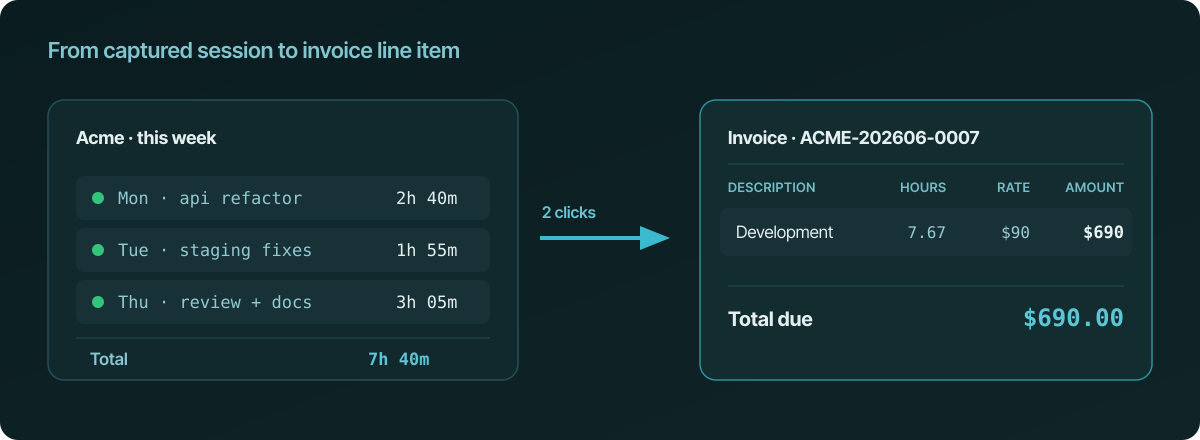
Tracking is only half the Friday-afternoon problem; the other half is turning
hours into a bill. Because projects link to clients and rates, a captured
session becomes an invoice line item directly — no export to a separate
invoicing app, no copy-paste. You review the week on the dashboard, fix
anything that looks off, and generate the invoice from the same time you just
tracked automatically.
What this approach deliberately does not do
Worth being clear, because "automatic tracking" means surveillance in some
products and it doesn't here:
- No screenshots, ever. Capture is file paths and URLs — both auditable in
plain text. - No keystroke logging and no productivity score. It records what you
worked on and where you browsed, not a judgement about it. - No reconstruction from memory. The session was recorded when it happened.
How to switch without losing past data
If you're moving off a manual timer, CSV import brings your historical entries
in, so the new automatic record sits alongside what you've already billed.
The short version
You don't forget to start a timer because you're undisciplined — you forget
because the timer interrupts the work. Capture the work instead: watch the
files you edit and the URLs you visit, let idle time close sessions, and
invoice from what was captured. Friday afternoon stops being archaeology.
See also
- an automatic time tracker (no timers) — Capture hours automatically instead of fighting a stopwatch.
- calculate lost billable hours — See how much un-tracked time costs you.
- track time across multiple clients — Auto-tag directories and URLs to each client project.
- turn tracked time into invoices — Captured sessions become client invoices in one app.
- automatic timesheets without manual entry — Let the timesheet write itself from your work.