
The setup, in one sentence
You SSH into a VPS, you run Claude Code there to build something, and you want the hours it works to show up as billable time without you babysitting a stopwatch. The Temporal.ist Linux CLI does exactly that: a terminal-native client and TUI that watches the directories Claude edits and turns the activity into sessions on your dashboard — all over SSH, no GUI required.
This guide walks through the whole thing: install, sign in, configure, and leave it running.
Why not the desktop app?
The macOS/Windows/Linux desktop client is great on a machine with a screen — it lives in your tray and watches local folders. A VPS has no tray, no display server, and you reach it through a terminal. So the desktop build is the wrong tool here. The CLI is built for precisely this case: headless boxes, remote dev, and "I do all my real work inside ssh" workflows.
1. Install — one line
SSH into your VPS and run:
curl -fsSL https://temporal.ist/install.sh | sh
That downloads a single self-contained temporal binary and drops it in ~/.local/bin. Re-run the same command any time to upgrade.
If the installer warns that ~/.local/bin isn't on your PATH, add it to your shell profile and re-open the shell:
echo 'export PATH="$HOME/.local/bin:$PATH"' >> ~/.bashrc
Confirm it's there:
temporal --version
2. Sign in over SSH with the device flow
There's no browser on the VPS, so temporal login uses the OAuth device flow — the same pattern gh auth login and aws sso login use. Run:
temporal login
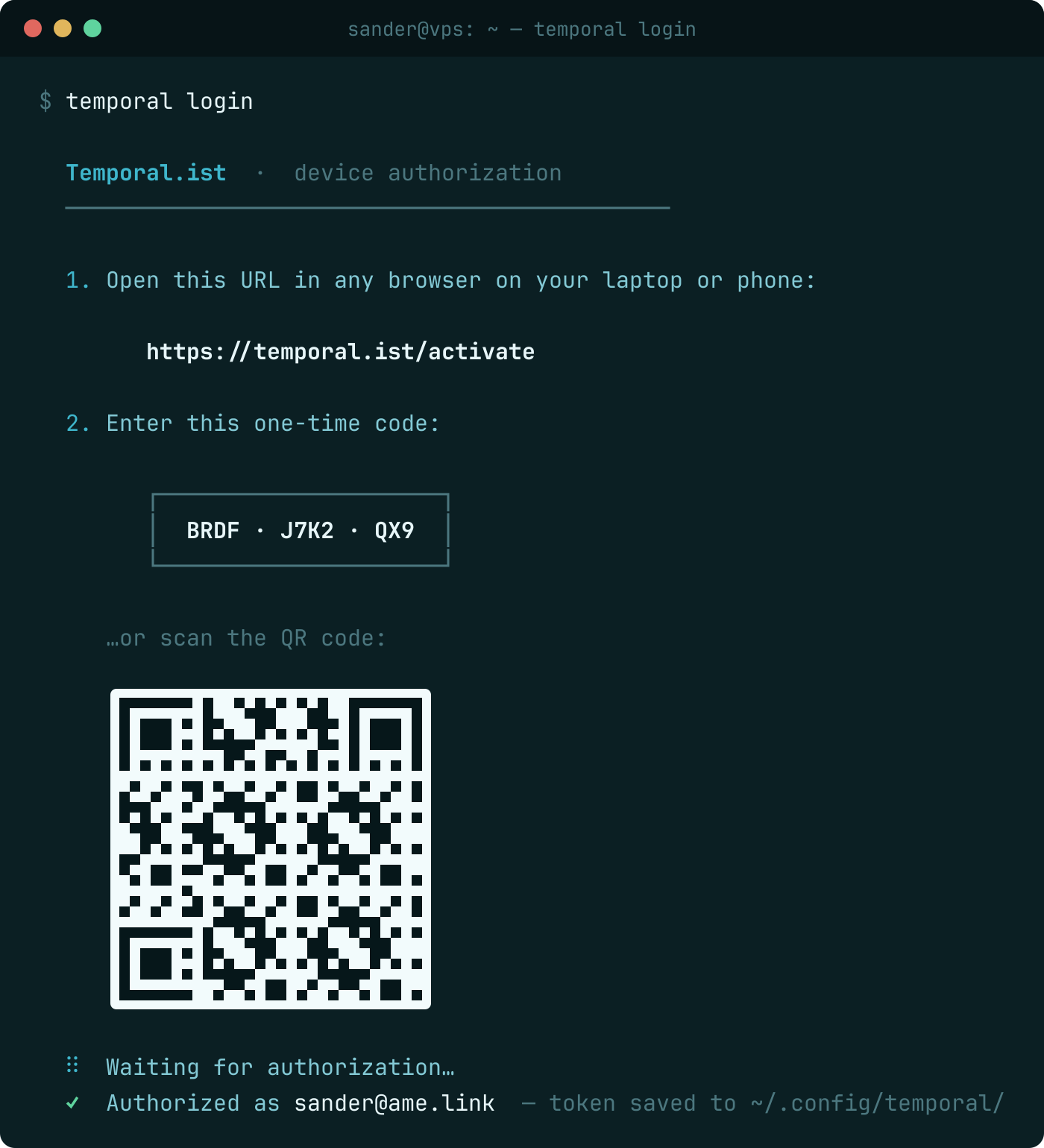
Open the URL on your laptop or phone, type (or scan) the code, and approve. The CLI stores the token under ~/.config/temporal/ and refreshes it automatically — you log in once per machine.
3. Open the TUI dashboard
Just run the bare command:
temporal

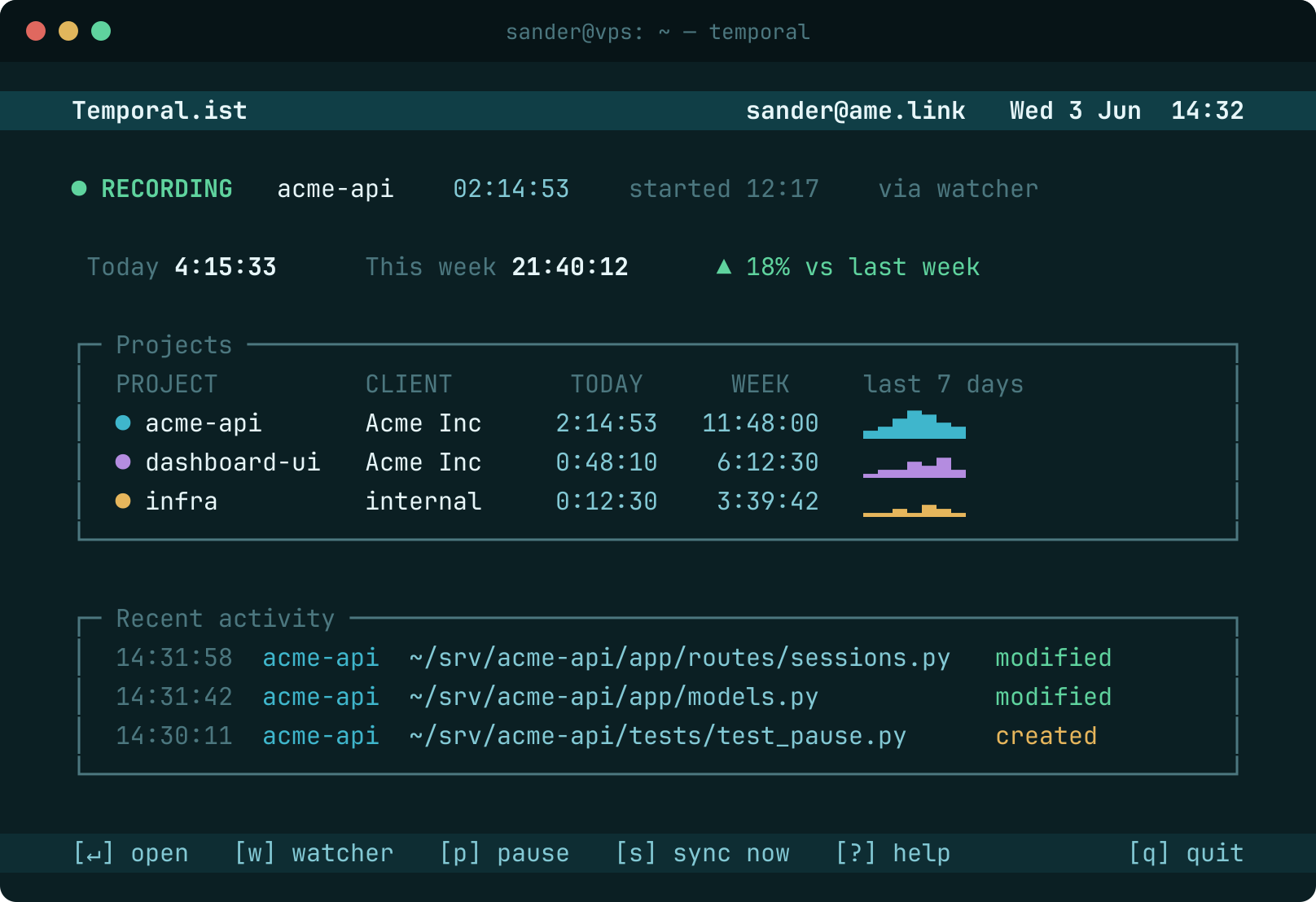
The dashboard is the home base. At a glance:
- Recording strip — the live session, which project it's on, how long it's run, and how it was started (
via watcher). - Totals — today and this week, with a trend against last week.
- Projects — per-project today/week time and a 7-day sparkline.
- Recent activity — the actual file events being captured, in plain paths. Nothing is hidden or AI-reshaped; you can read exactly what was tracked.
The footer shows the keybindings: w jumps to the watcher, p pauses, s forces a sync, q quits.
4. Point it at the repos Claude Code touches
This is the step that makes everything work. Press the projects key to open the watch-path editor and map each project to a directory:
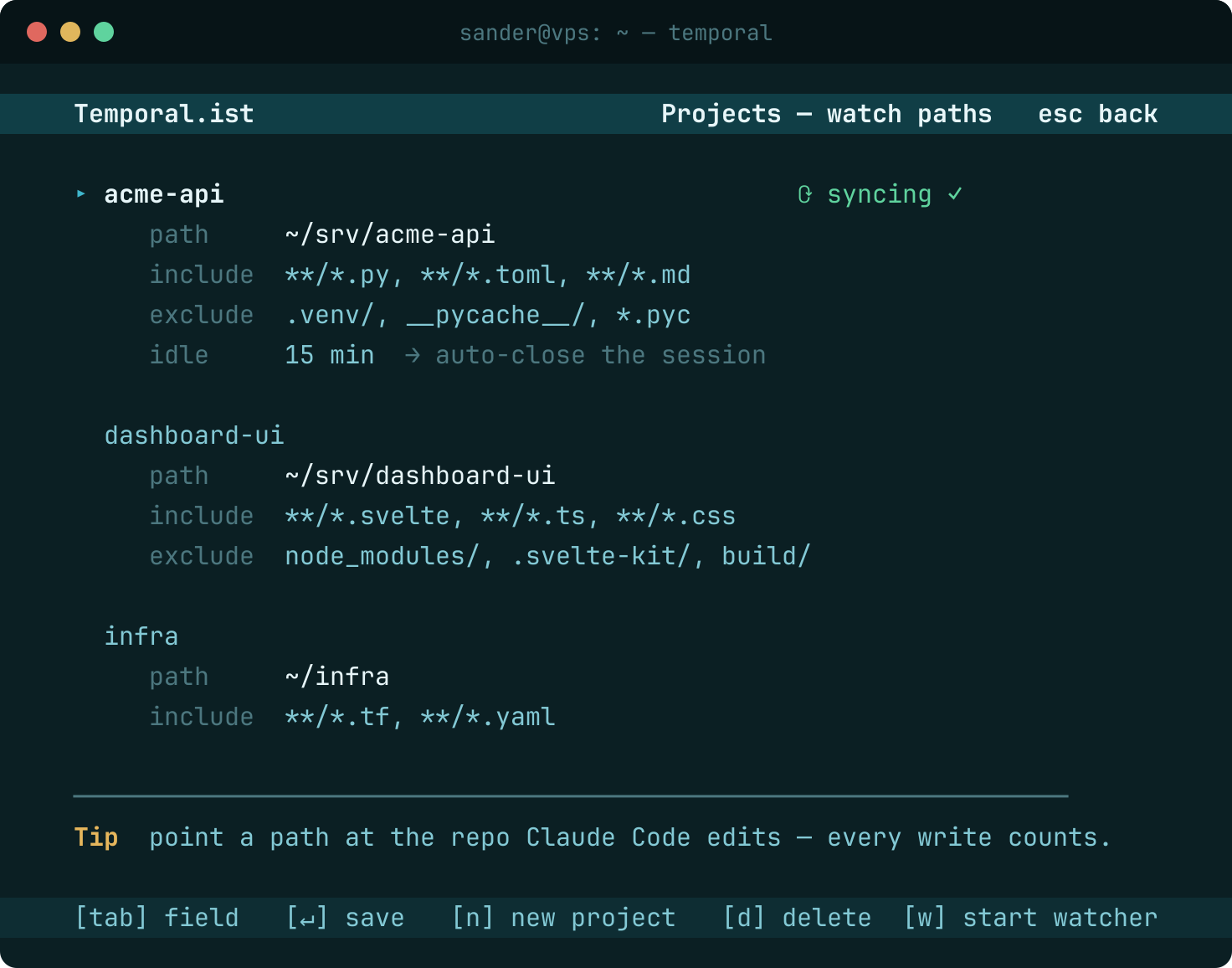
For each project you set:
| Field | What it does |
|---|---|
| path | The directory to watch, e.g. ~/srv/dmi-api |
| include | Globs that count as activity — **/*.py, **/*.svelte, … |
| exclude | Noise to ignore — .venv/, node_modules/, __pycache__/ |
| idle | How long with no edits before the session auto-closes (default 15 min) |
The key insight for Claude Code users: point a watch path at the repo Claude is working in. When Claude edits, creates, or refactors files, those are ordinary filesystem writes — the watcher sees every one of them and rolls them into a session for that project. You don't tell Temporal.ist "Claude is working now"; it just notices the files changing.
Exclude generously. Claude often runs tests, installs dependencies, or builds — you don't want node_modules/ churn or .venv/ writes inflating your hours. The exclude globs keep tracking to the work that's actually billable.
5. Keep it running as a service
temporal watch runs the file watcher in the foreground — handy to see live events:
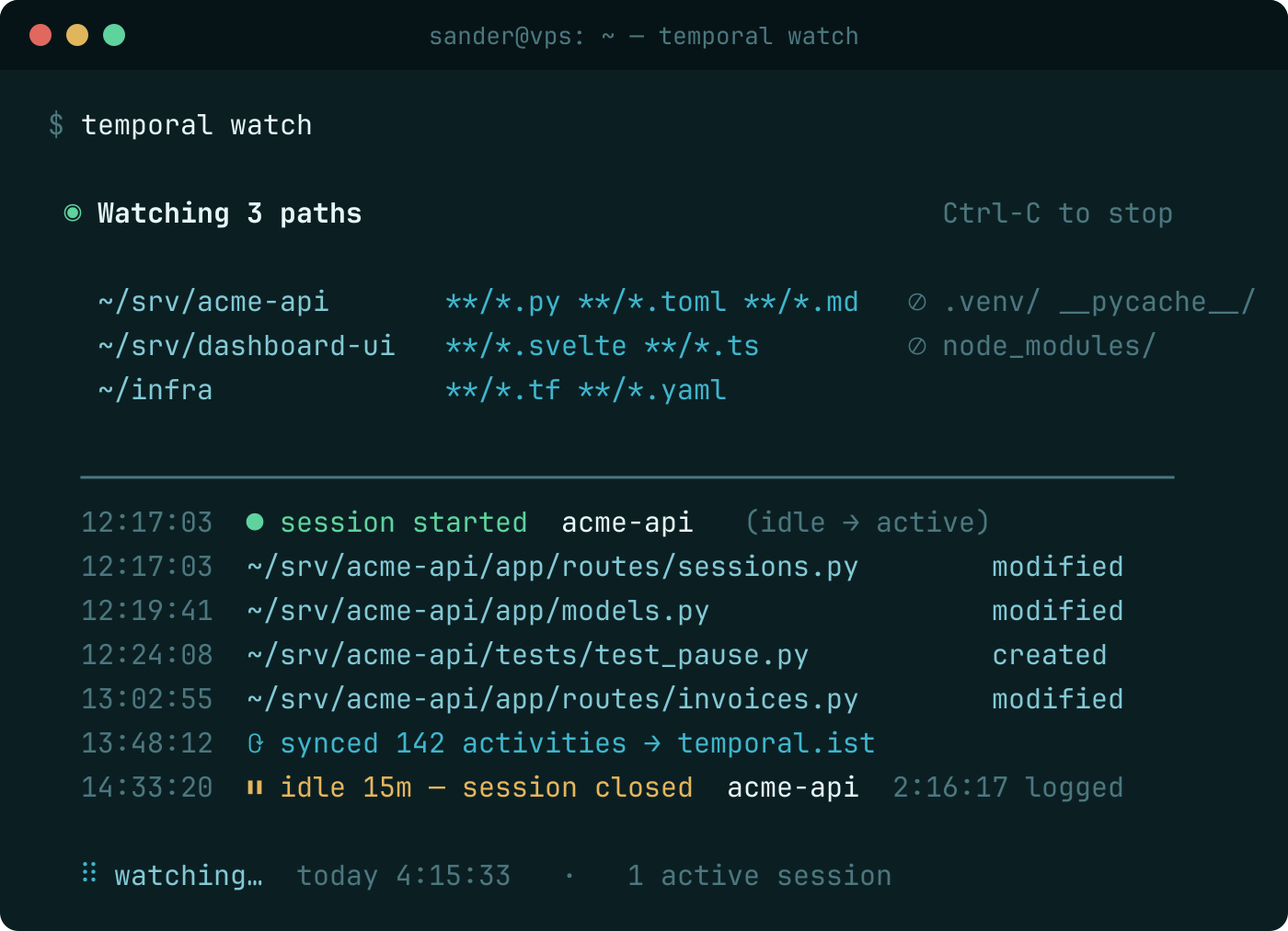
But on a VPS you want it running even after you close the SSH session. The TUI can install a service for you, or set up a systemd user service by hand. Create ~/.config/systemd/user/temporal.service:
[Unit]
Description=Temporal.ist file watcher
After=network-online.target

[Service]
ExecStart=%h/.local/bin/temporal watch
Restart=on-failure
RestartSec=5

[Install]
WantedBy=default.target
Enable and start it:
systemctl --user daemon-reload
systemctl --user enable --now temporal
By default a user service stops when you log out. To keep it tracking across SSH disconnects and reboots, enable lingering for your account (run once, as a sudoer):
sudo loginctl enable-linger "$USER"
Now the watcher comes up on boot and keeps capturing whether or not you're connected. Check on it any time with systemctl --user status temporal or by opening the TUI.
How a Claude Code session maps to tracked time
Put together, a normal afternoon looks like this:
- You SSH in, start
tmux(orscreen), and launchclaudein~/srv/dmi-api. - Claude starts editing files. The watcher sees the first write and opens a session on dmi-api, tagged
via watcher. - For the next two hours Claude edits, you review and steer, tests run. Every in-scope file write keeps the session alive; excluded paths are ignored.
- You wander off for lunch. After 15 minutes with no edits, the session auto-closes — your break isn't billed.
- Activity syncs to the backend, so the hours show up on the web dashboard and are ready to drop onto an invoice.
If you want to carve the day into separate sessions deliberately, p pauses and resumes from the TUI. And because capture is just file paths and timestamps — no screenshots, no keystroke logging — you can always audit exactly what was counted.
Verify it landed
Open your dashboard (or the /calendar view) from any browser. The session you just recorded on the VPS will be there under the right project, with the same totals the TUI showed. From there it's two clicks to an invoice line item.
That's the whole loop
Install the binary, log in once, map your repos to watch paths, and run the watcher as a service. After that, every hour Claude Code spends in those repos tracks itself — and you get your Friday afternoons back.
See also
- track coding time in any editor — Tracks your edits in VS Code, Neovim, JetBrains — no plugin.
- file-change time tracking — Why watching file changes beats monitoring apps or activity.
- no-surveillance time tracking — Log accurate hours without screenshots or monitoring.
- developer time tracking — The developer-focused landing page for automatic time tracking.
- the timesheet that writes itself — Automatic time tracking that fills your timesheet for you.