
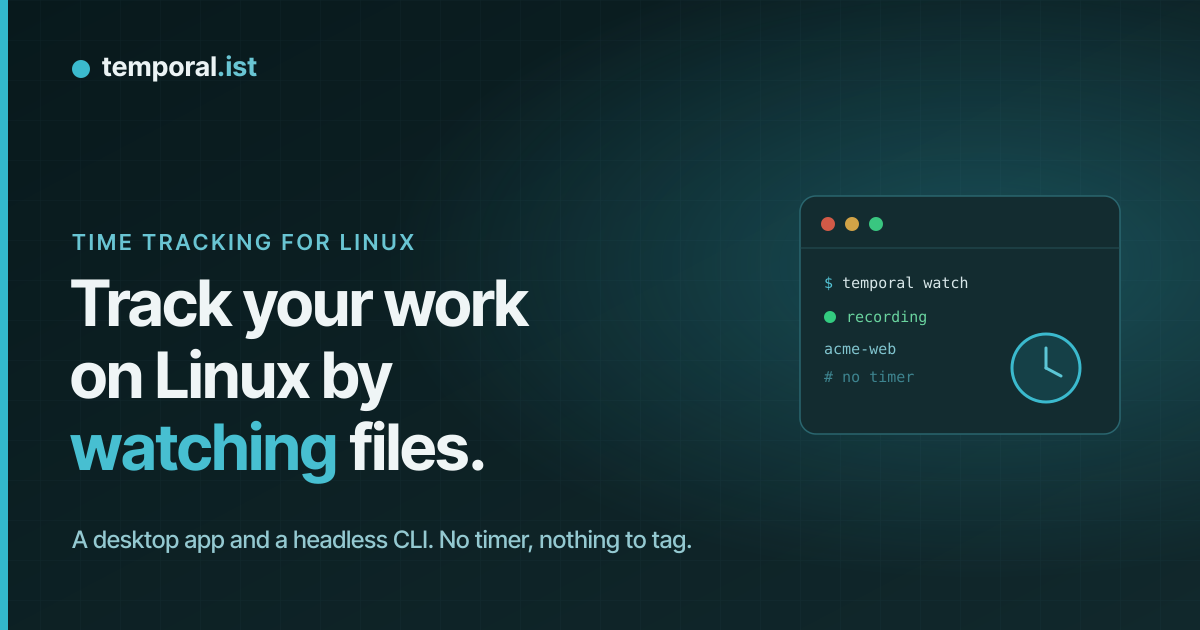
Linux is a first-class target, not an afterthought
Most time trackers treat Linux as the platform they port to last — a thinner
build with half the features, or just a web tab you forget to start. That's
backwards for the people who actually live on Linux: developers, sysadmins, and
freelancers running their whole business from a laptop and a VPS.
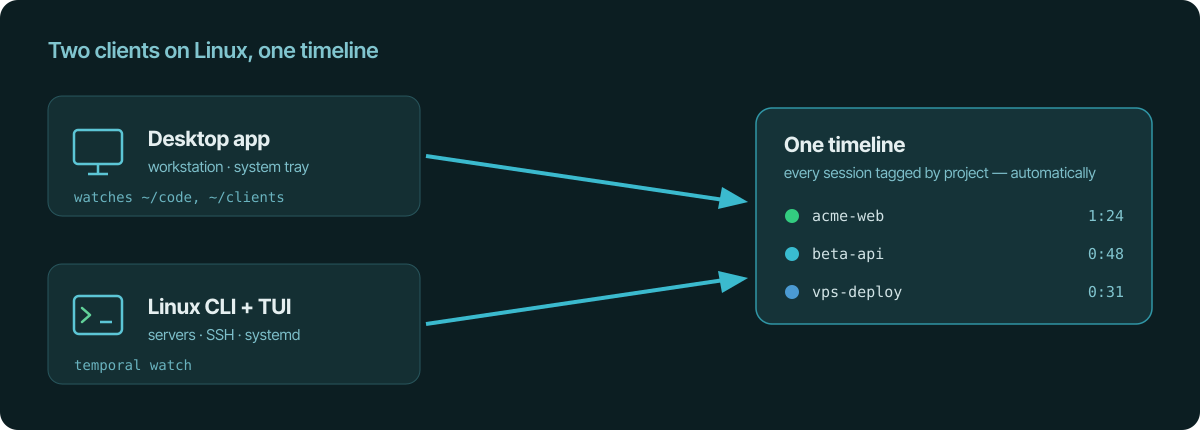
Temporal.ist tracks time on Linux the way Linux work really happens — by watching
the files you save. There's a desktop app for your workstation and a headless CLI
for servers and SSH, and both feed the same timeline. You don't start a timer and
you don't assign your work to a project. You just work; the hours assemble
themselves, ready to bill.
The desktop client
On a Linux workstation you run the desktop client — a lightweight system-tray app
that sits quietly in your panel and watches the directories you point it at. The
tray icon tells you the state at a glance: idle, actively recording, or syncing.
You set it up once, per project:
- Watch path — the directory whose work counts, e.g.
~/code/dmi/or
~/clients/beta/. - Include / exclude globs — what's real work versus noise. Excluding
node_modules/,.venv/,target/and build output matters more than it
sounds: a singlenpm installorcargo buildwrites hundreds of files you
don't want inflating your hours. - Idle timeout — how long without an in-scope edit before the session
auto-closes (default 15 minutes), so lunches and meetings aren't billed.
It keeps a local database and works offline — track on a plane, and it syncs
to your account when you're back online. A manual start/stop lives in the tray as
a fallback, but the point is that you almost never reach for it.
The headless Linux CLI
Plenty of Linux work has no desktop at all — it's a terminal, often on a remote
box over SSH. For that there's a headless CLI and TUI. It installs over plain
SSH, signs in with the OAuth device flow (no browser needed on the server), and
runs the watcher as a systemd service, so a reboot brings your tracking back
with it.
temporal watchruns the file watcher as a daemon — ideal for a VPS or build
box where you edit and deploy over SSH.- The interactive TUI gives you the same start/stop, project list and live
timer in the terminal, for when you want a quick manual session. - Each session is tagged with where it came from, so terminal work on a server
lands in the same timeline as your desktop work — no double entry.
Same account, same projects, same invoices — just without a GUI.
You never mark what you worked on
Here's the part that makes the whole thing low-effort: because tracking is keyed
to file changes, the project is implied by where the change happened. A save
under ~/clients/dmi/ is the Dunder Mifflin project; a save under ~/clients/beta/ is
Beta. There's no dropdown to pick, no "assign to project" step, and no
end-of-day reconstruction from memory, git logs and calendar guesswork.
That's the difference from a stopwatch app: a timer only knows what you remembered
to tell it, so the day you forget to switch projects is the day your timesheet
lies. Watching files removes the human step entirely — the path is the project.
From a file save to an invoice — one click
Each project links to a client and an hourly rate. Because your sessions
are already tagged to the right project, there's nothing to reconcile at the end
of the month: pick the client and the period, and the tracked time becomes an
itemized invoice — each line backed by real sessions, the invoice auto-numbered
ORG-YYYYMM-XXXX — in a single click.
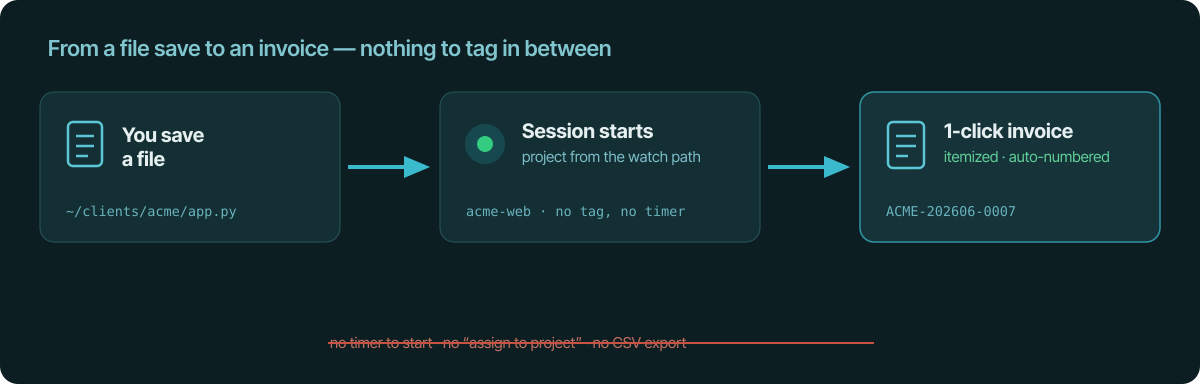
No CSV export to a spreadsheet, no copy-pasting hours into a second invoicing app.
The same tool that watched your files writes the invoice.
What it never does
- No screenshots, no keystroke logging, no productivity score. Capture is
plain file paths (and, via the browser extensions, visited URLs) — all
auditable in plain text. - No timer to babysit. The manual start exists as a fallback; the default is
that you never touch it. - No lock-in to one machine. Desktop, CLI and browser all sync to the same
account, so your laptop and your VPS share one set of projects and one invoice.
The takeaway
Time tracking on Linux shouldn't mean a worse build or a forgotten browser tab.
Run the desktop app on your workstation, the CLI on your servers, let both watch
the files you save, and the project sorts itself out from the path. When it's time
to bill, the hours are already where they belong — one click from an invoice.
See also
- developer time tracking — Built for developers who live in the editor and terminal.
- track coding time in any editor — Works in VS Code, Neovim, JetBrains — watches files, not plugins.
- track time across multiple clients — Map directories and URLs to projects for per-client invoices.
- no-surveillance time tracking — Log accurate hours without screenshots or keystroke logging.
- automatic billable hours — Capture billable time from file edits, no stopwatch.